 Second Lock

Your password
Choose a session from one minute to an hour. Five minutes is the default, and Second Lock remembers your last choice.
Private beta for Mac
Add a separate lock to Messages, Mail, Photos and any other app you choose. Unlock with your password, Touch ID or iPhone.
macOS 13+ · No account required
Product tour
See how app locks, file protection and iPhone approvals work in Second Lock.
On your Mac
Choose your protected apps once. When you need them, enter your Second Lock password and set a timer from one minute to an hour.
Play Mac demo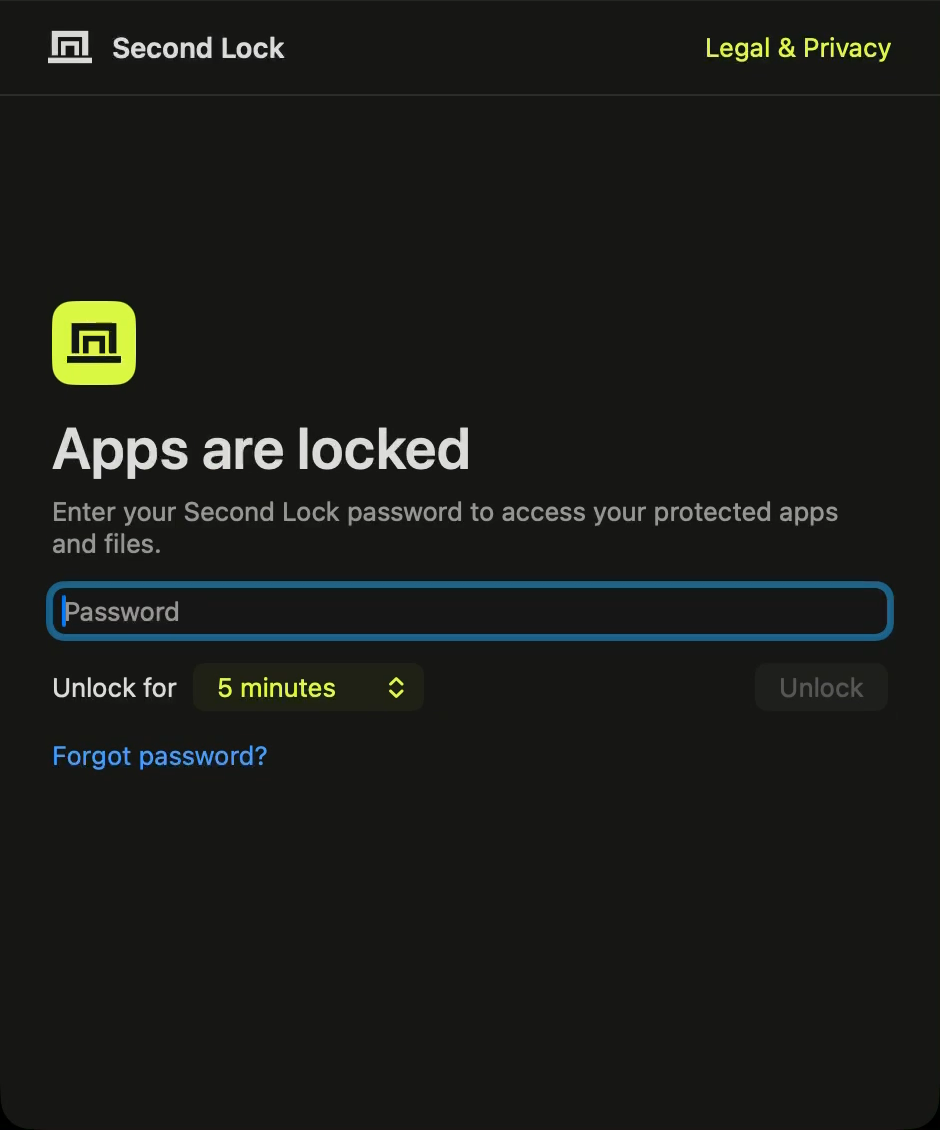
On your Mac
Lock an eligible file or folder on a local APFS disk. It stays where you saved it. For a separate encrypted copy, use the File Vault.
Read about file protection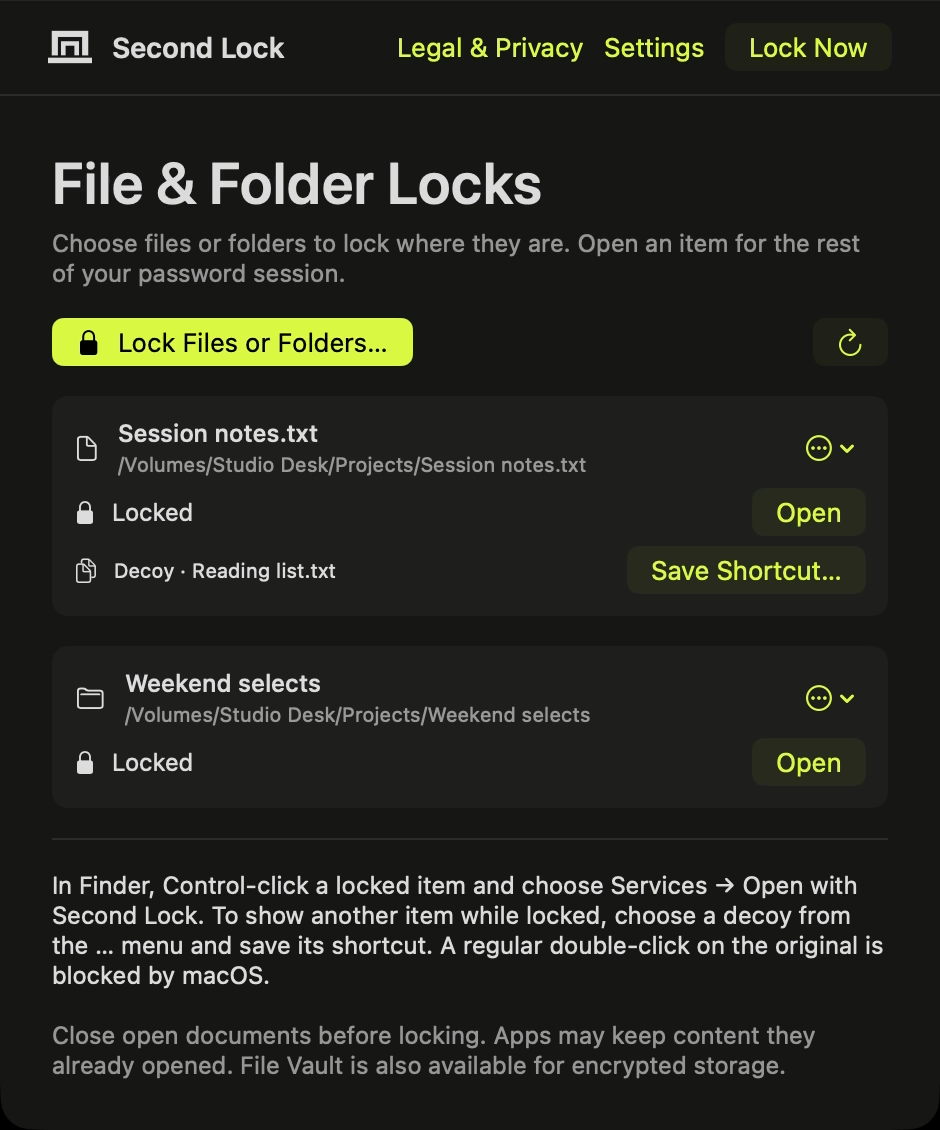
On your iPhone
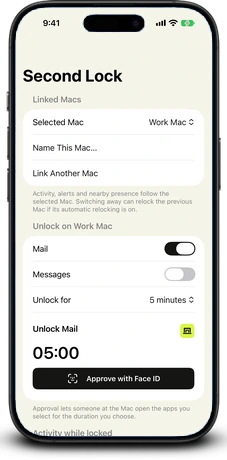
Pick the Mac, the apps, and how long to open them. Your linked iPhone can also notify you when someone tries to open a protected app.
See how approval works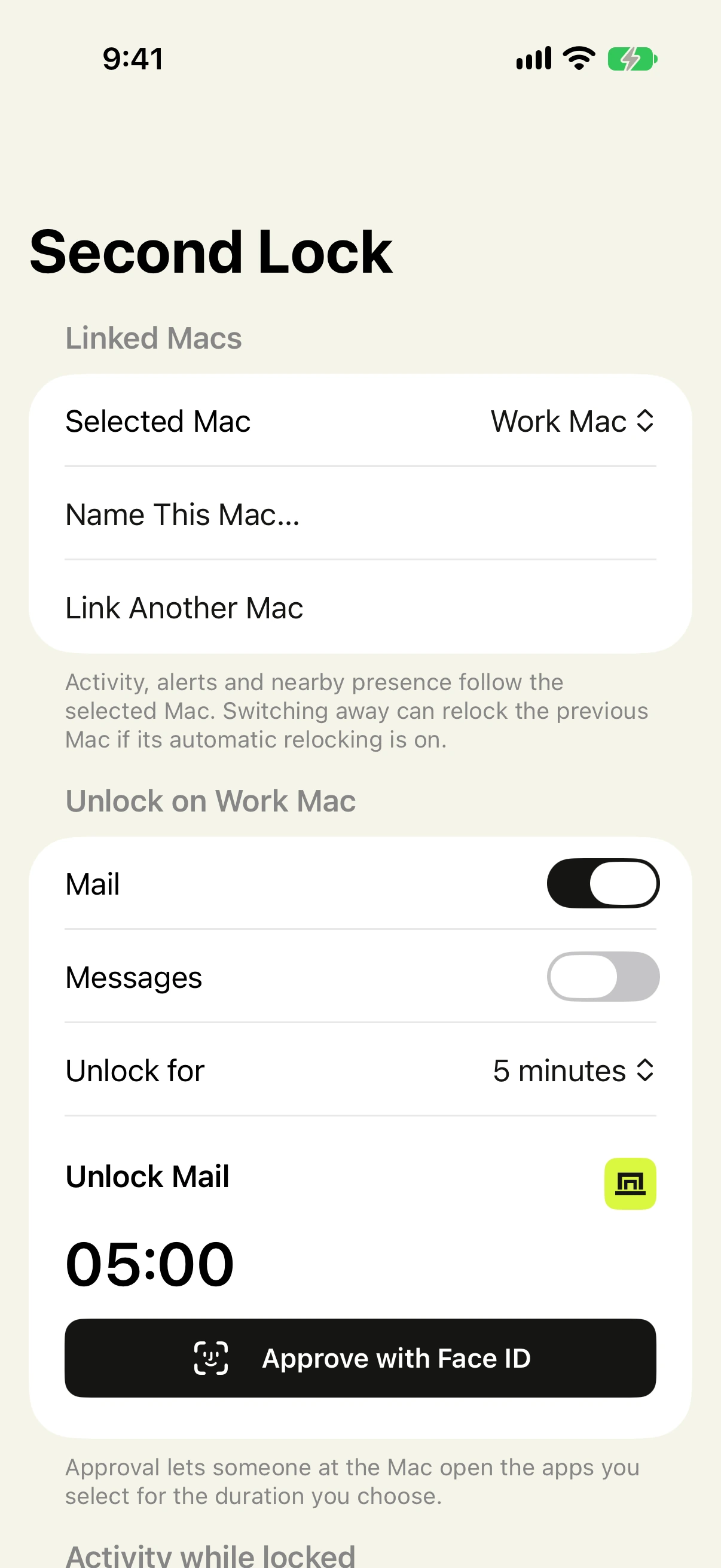
On your iPhone
Pair another Mac and switch between them on your phone. The selected Mac has its own app list, activity, and approval controls.
Watch the Mac switcher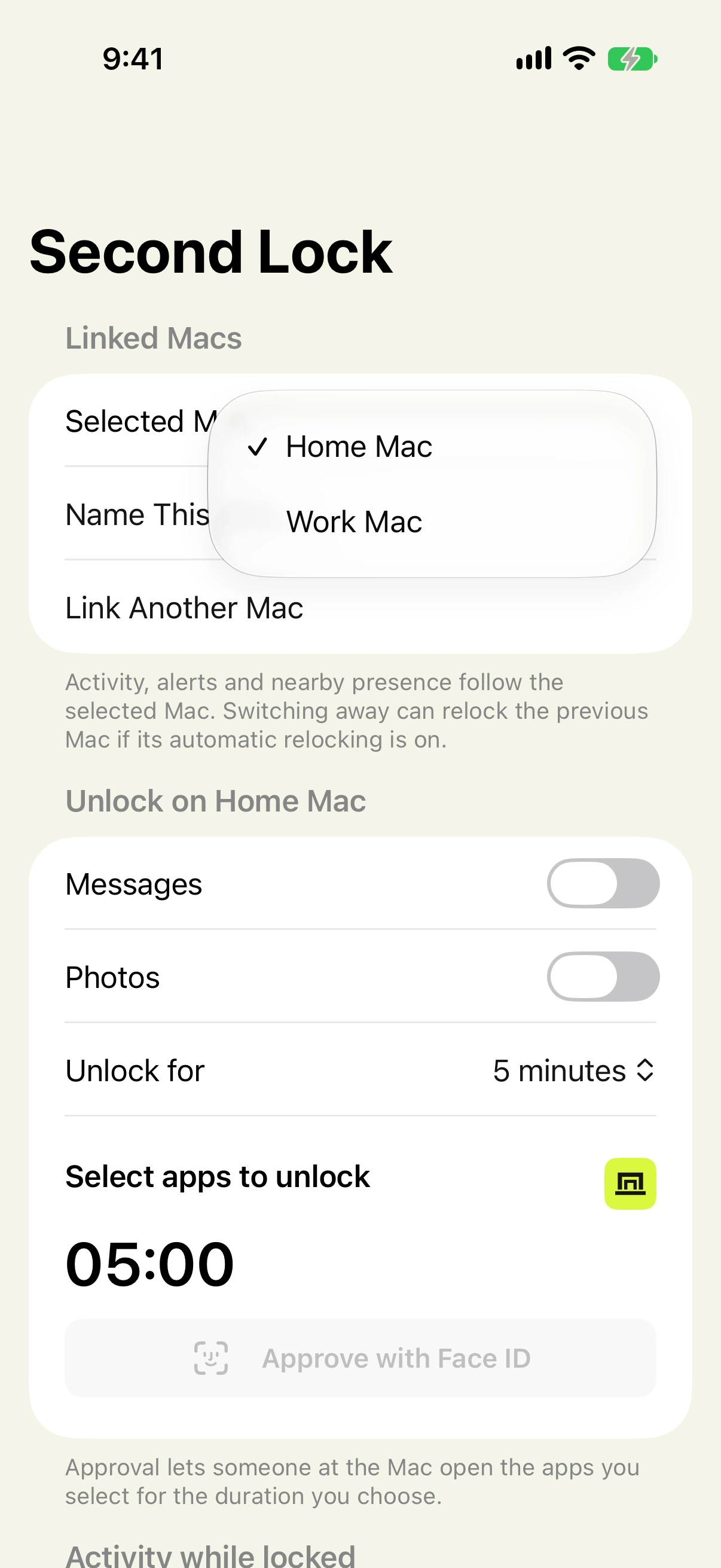
iPhone companion
Pick a linked Mac, choose which apps to unlock and for how long, then approve with Face ID.
Explore hands-free access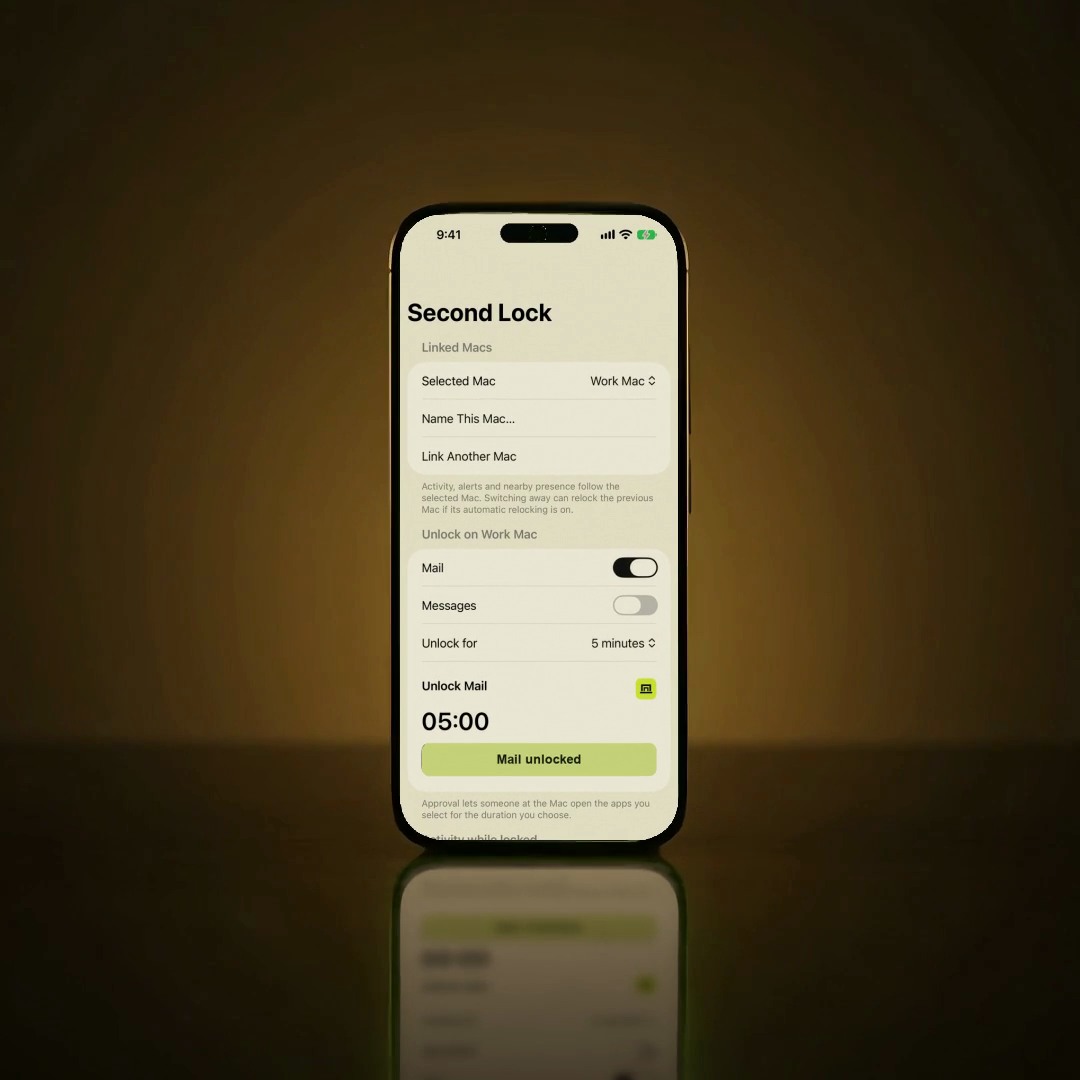
Hands-free with iPhone
Choose which apps are available while your paired iPhone is nearby, even with its screen locked. When you leave with your phone, those apps relock.
Proximity demo
iPhone nearby · Apps unlocked
Demo countdown is sped up.
Unlocking
Use your password, set up a shortcut or pair an iPhone. Your protected apps relock when the session ends.
Choose a session from one minute to an hour. Five minutes is the default, and Second Lock remembers your last choice.
A keyboard shortcut, a secret spot on your desktop, or a Finder shortcut. Ask for your password, unlock instantly, or open one app with Touch ID.
Approve access with Face ID, or make selected apps available when your paired iPhone is nearby.
Relocks automatically when the timer ends · on sleep or display sleep · on the macOS screen lock · on a user switch · after your iPhone leaves if enabled · or with Lock Now
Features
Mac
See when a protected app was opened and optionally show your own message to the person at the Mac.
Files
Point a Finder shortcut at the real item. While it’s locked, the shortcut opens an alternate you’re happy to show.
Files
Keep copies in an AES-256 encrypted disk image. Second Lock stores its key in Keychain and requests ejection when your session ends.
iPhone
Get a notification on your iPhone when a protected app is opened. Alerts use a generic summary on the Lock Screen.
iPhone
Authorize a linked Mac with Face ID, then use a widget on your unlocked iPhone to start an app session.
Security
Add a six-digit code from your authenticator app to every local unlock. Reused codes are rejected.
Security
Save a recovery key while you know your password. If you forget it, the key lets you set a new one on the Mac.
Security
Failed attempts are counted, and repeated guesses have to wait before trying again.
Mac
Turn on start at login and Second Lock waits quietly in the menu bar, ready before you open anything.
Getting started
The Mac app works on its own. Add your iPhone whenever you like.
Create a Second Lock password of at least ten characters. Then save a recovery key somewhere you can reach when your apps are locked.
Start with Messages, Mail and Photos, or add any other Mac app. Save your work, then choose Turn On Lock.
Optional. Scan the QR code on your Mac with the companion app to approve unlocks with Face ID and get alerts.
Straight answers
Second Lock responds when a protected app opens or comes to the front, so a window may appear briefly. Notification previews and web versions of an app aren’t covered. Read the security and recovery guide.
FAQ
Set a Second Lock password on your Mac, save your recovery key somewhere safe, then choose the apps to protect. You can use the Mac app on its own. Pair an iPhone when you want mobile approvals or alerts.
No. The Mac app works on its own, and email registration is optional. The iPhone companion adds Face ID approvals, hands-free access, blocked-app alerts and support for several Macs.
Yes. Choose a keyboard combination, a secret spot on your desktop, or a Finder shortcut. Set it to bring up the password prompt, open one app with Touch ID, or instantly unlock your selected apps. Anyone who discovers an instant shortcut can use it.
A timed app session ends at the duration you chose. With Lock when iPhone leaves turned on, Second Lock also relocks 20, 40 or 60 seconds after your paired iPhone moves out of range. Bluetooth range varies with your surroundings.
Yes. Choose an alternate document or folder and save a Finder shortcut for the protected original. Opening that shortcut while the original is locked shows the alternate. Opening the original directly follows its macOS file permissions.
Create a recovery key in Settings while you still know your password. On the locked Mac, choose Forgot password?, enter the key and set a new password. The key can be used once, so create a new one afterwards.
The Mac app needs macOS 13 Ventura or later. The iPhone companion needs iOS 17 or later, with iCloud Drive and Bluetooth for linking and nearby features.
Second Lock responds when a protected app opens or comes to the front. Its window may appear briefly. Use the macOS screen lock when you step away, and use encryption for sensitive files. Read the security and recovery guide.
Beta access
Request an invitation by email.
macOS 13+ · Optional companion on iOS 17+